
Red Rover K12
Red Rover Technologies LLCEducation
4.61.16K Reviews
- Version
- 7.0.2
- Installs
- 100.00K
- Age Rating
- Everyone
Screenshots

Our Review of Red Rover K12
 Analysis by Appyee
Red Rover K12 is the kind of education app I would judge less by flashy presentation and more by whether it helps a school employee handle an absence without wasting valuable time. In my experience, that is the real test: can a teacher, substitute, or other K–12 employee open the app, understand what is expected, and complete the necessary absence-related task without having to chase through several unrelated tools?
That focused purpose makes the app easy to place. It is a free education app from Red Rover Technologies LLC, designed around the practical connection between K–12 employees and substitute coverage. Its store summary describes it as a modern way for employees and substitutes to register and fill absences, and that narrow focus is important. This is not a general classroom planner, a student learning platform, or a broad staff communication suite. It is built for a specific part of school administration that is often urgent and inconvenient.
The app has a 4.6 average from around 8K ratings, with over 100K installs. Those figures suggest that it has found a real audience among school communities, but they should not be read as a guarantee that every district will offer the same experience. Red Rover K12 is closely tied to the organization using it, so the quality of the workflow depends partly on how that school or district has configured its absence process.
Where the first-use experience can become confusing
The biggest potential stumbling block is understanding the app’s role before trying to use it. A person who downloads it expecting a public substitute marketplace or a general employee portal may feel lost. The app makes the most sense when your school or district already uses Red Rover for absence registration and substitute fulfillment. In that situation, the app is a mobile doorway into an existing work process rather than a standalone service that creates a complete account experience for anyone.
I would therefore start by confirming that your employer uses Red Rover and that you are signing in through the correct organization. This is especially important for substitutes, who may work with more than one school system. Choosing the wrong organization or using an account that is not connected to the district can look like an app failure even when the underlying issue is account setup.
Another source of friction is the difference between registering an absence and filling one. These are related tasks, but they are not the same action. An employee may need to report that they will be away, while a substitute may need to find and accept an available assignment. If you approach the app with the wrong role in mind, the screens and available actions may appear incomplete. Before tapping repeatedly, I would ask a simple question: am I reporting my own absence, or am I looking for work created by someone else’s absence?
The most useful mental model is to treat the app as a role-based work tool, not as a general school app. That expectation makes the interface easier to interpret and prevents a common mistake: assuming that every user should see the same options.
There is also a practical timing issue. Absence reporting is often done early in the morning, late at night, or while someone is already under pressure. A small sign-in problem can feel much larger at those moments. I recommend completing the initial sign-in and checking the main workflow before an urgent absence occurs. That gives you a chance to recognize your district, verify your account, and learn where the relevant action begins.
What I would check before blaming the app
If the app opens but the expected information is missing, I would first check whether the correct account is active. Signing out and back in can help when an old session is still present, particularly on a shared or previously used device. I would also confirm that the phone has a stable internet connection. A weak connection can make a work list appear empty, leave a submission looking unfinished, or delay a change that has already been made.
Keeping Red Rover K12 updated is sensible as well. The current version is 7.0.2, and the app supports Android 7.0 and later. If the operating system is older than that minimum, installation or normal operation may be limited. On a compatible phone, an update can also resolve ordinary loading or sign-in friction, although it cannot correct an account that has not been activated by the organization.
I would avoid making several identical submissions just because the screen takes a moment to respond. That can create uncertainty about whether the absence was registered once or multiple times. Instead, wait briefly, check for a changed status or confirmation, and then verify the result through the app or through the district’s normal communication channel.
Setting up a dependable routine
The best setup is not complicated, but it is deliberate. After installing the free app, I would sign in when there is no immediate deadline, identify whether the account is for an employee or substitute, and walk through the relevant path far enough to understand what information the system expects. I would not submit a test absence unless the employer explicitly allows that. A practice tap in a live absence system can have real consequences.
For employees, the key preparation is knowing the district’s preferred timing and approval expectations. The app can provide the place to register an absence, but it does not replace local rules about notifying a supervisor, entering notes, or arranging lesson information. If your school requires a separate call or message, completing the app step does not automatically satisfy that requirement.
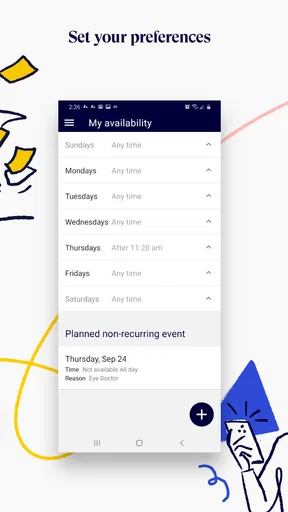
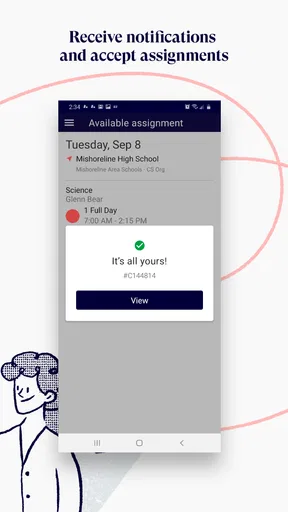
For substitutes, I would make sure the profile and availability information used by the district are current before relying on the app for a morning assignment. If an expected opportunity does not appear, it may be because the district has not released it, because your account is not eligible for that assignment, or because your status is not configured as expected. Repeatedly refreshing is unlikely to solve an account-level issue.
A useful habit is to keep a short personal checklist nearby rather than relying on memory under pressure. It might include the correct organization, the account used for work, the district’s separate notification requirement, and the person to contact when the app does not reflect what you were told. This is not a feature of Red Rover K12, but it makes the app much easier to use because it separates mobile actions from local administrative expectations.
Recovering when an absence or assignment seems stuck
When a workflow appears incomplete, I would recover in a fixed order. First, confirm the connection and wait long enough for the screen to finish loading. Second, check whether the app shows a changed status rather than assuming that an unchanged screen means failure. Third, close and reopen the app, then sign in again if necessary. These are ordinary steps, but they are safer than immediately repeating an action that may already have been recorded.
If the problem continues, compare what the app shows with what your school or district expects. For example, an employee might have successfully registered an absence but still need to notify a supervisor through another channel. A substitute might see no assignment because there is currently nothing available, not because the app is broken. The distinction matters: technical recovery will not create an absence or assignment that the organization has not entered.
For a time-sensitive absence, I would use the district’s established backup contact while preserving the app details. Note the approximate time, the account used, and the message or status visible on screen. That gives the school a clearer starting point than saying only that “the app did not work.” It also prevents a technical delay from becoming an attendance or staffing problem.
One subtle trade-off is that mobile convenience can encourage people to complete only the first visible step. A registered absence may still need supporting information, and an accepted assignment may still involve instructions from the school. Red Rover K12 can streamline the central transaction, but users should not assume that every local follow-up disappears simply because the app accepted a tap.
When the app is not the cause
Many apparent app problems are actually organization or account problems. If you can install the app but cannot see the correct school, the issue may be that your account is linked to a different organization. If a substitute cannot fill an assignment, the assignment may have been removed, restricted, or taken by someone else before the list refreshed. If an employee cannot complete a report, the district may require information that has not been entered or may have a separate approval process.
This is where Red Rover K12 differs from a simple personal calendar. A calendar lets you record that you will be away, but it cannot connect that absence to a school’s substitute workflow. On the other hand, a general messaging app may let you contact a supervisor quickly, yet it does not necessarily provide the structured record that the district needs. Red Rover’s value comes from occupying that middle ground between personal organization and school staffing administration.
The trade-off is dependence on the participating organization. A personal calendar works regardless of whether a district has configured it, while this app is useful only within the Red Rover process used by your employer or school system. Someone who merely wants to track appointments, plan lessons, or notify colleagues informally should choose a different tool. This app is not a replacement for those categories.
I also would not recommend it as the only emergency plan. Even a well-designed work app can encounter connection issues, account confusion, or a district-side delay. Keeping the official school contact route available is sensible, particularly for an absence that starts soon. The app can be the primary workflow without being the sole communication method.
Who will benefit most from the focused design
Red Rover K12 is a strong fit for K–12 employees who regularly need to register absences from a phone and for substitutes who need a mobile way to handle available assignments. It is especially practical for people who move between classrooms or schools and do not want to depend on a desktop browser for every staffing task. The focused design can also reduce the confusion that comes from using email threads, spreadsheets, and separate messages for one absence.
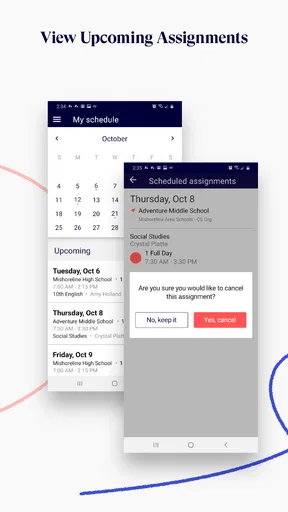
A realistic example would be a teacher who becomes ill before the school day begins. Instead of waiting to reach a computer, the teacher can open the app, enter the absence through the district’s Red Rover process, check the resulting status, and then complete any separate notification required by the school. A substitute who is already approved in that system can then use the same general platform to look for available work. The benefit is not that every step becomes automatic; it is that the central absence exchange has a defined place.
The app is less suitable for students, parents, or teachers whose districts do not use Red Rover. Its Everyone content rating may make it broadly accessible from an age-label perspective, but that does not mean it is useful to every age group. The audience is determined by the employment workflow, not by the rating alone.
It is also not ideal for someone who expects detailed employee management, payroll, lesson planning, or broad internal communication in one application. Those needs belong to other systems. Red Rover K12 earns its place by handling a narrower job, and expecting it to become a complete school operations platform would lead to disappointment.
How it compares with familiar alternatives
Compared with calling the school office, the app offers a more structured and potentially more convenient way to enter an absence or interact with substitute coverage. A phone call may still be faster when an account is not working or when the situation is unusual, so I see the two methods as complementary rather than mutually exclusive.
Compared with email, the app is better suited to a process that needs a clear status and a connection between an absence and substitute availability. Email remains useful for context, explanations, or local instructions, but it can become difficult to track when several people are involved. The app’s focused workflow is valuable precisely because it reduces that ambiguity.
Compared with a browser-based school portal, a mobile app can be more convenient when the user is away from a desk. The compromise is that a smaller screen may make unusual cases or detailed information harder to review. For a straightforward absence, mobile access is a genuine advantage. For complicated administrative work, I would still prefer the district’s fuller web or office process if one is available.
My practical verdict after weighing the friction
Red Rover K12 is a useful, specialized education app rather than an all-purpose school companion. I like its clear purpose: it gives K–12 employees and substitutes a mobile route into an absence and coverage workflow that would otherwise be scattered across calls, email, and office systems. The strongest benefit appears when the user already belongs to a participating organization and has completed account setup before an urgent need arises.
The main limitation is equally clear. The app cannot fix an incorrect organization, an inactive account, a missing assignment, or a district rule that requires another notification. Users who understand that boundary will have a much smoother experience. Users who expect the app to work independently of their school’s configuration may mistake normal workflow limits for technical defects.
With a 4.6 average and around 8K ratings, it has earned encouraging feedback, while its free price removes the financial barrier to trying it. The developer is Red Rover Technologies LLC, and the app was released on Aug 10, 2020. Its current version and Android compatibility make it a practical option for supported devices, but the real decision is not the download itself; it is whether your school or district has placed your account inside the Red Rover process.
My recommendation is straightforward: if your employer uses Red Rover, install it, sign in before you need it, learn the difference between reporting an absence and filling one, and keep the school’s backup contact method handy. If your organization does not use the platform, or if you only need a personal calendar or messaging tool, this is not the right choice. For the people it is built for, however, Red Rover K12 can turn a stressful staffing task into a more orderly mobile routine.
Verdict
Strengths of Red Rover K12
- Simple interface makes classroom setup quick for teachers.
- Supports structured group activities that encourage student participation.
- Useful for practicing communication and teamwork in class.
- Can add variety to lessons beyond traditional worksheets.
- Suitable for short activities when class time is limited.
Limitations of Red Rover K12
- Requires teacher supervision to keep activities organized and fair.
- May be less useful for very small classes or individual learners.
- Some students may feel uncomfortable with competitive group play.
- Activity value depends heavily on the teacher’s preparation.
- Older students may find the gameplay too simple or repetitive.
Similar Picks in This Category
View All
Duolingo: Language Lessons
Duolingo4.7

Google Classroom
Google LLC2.8

Unacademy: Learn & Crack Exams
Unacademy3.2

Bible App for Kids
Life.Church4.4

Cake - Learn English & Korean
Cake Corp.4.7

Brainly: AI Homework Helper
Brainly4.5
Frequently Asked Questions
What is Red Rover K12, and who is it designed for?
Red Rover K12 is a school communication and family engagement platform designed to connect parents, guardians, teachers, administrators, and other members of a school community. It can be used for announcements, reminders, alerts, event information, and general updates. Before downloading, check whether your child’s school or district uses Red Rover K12, since many of its features depend on an active organization account and an invitation or verified school affiliation.
How do I sign in to Red Rover K12?
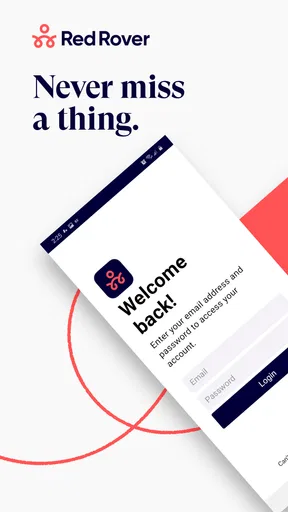
Access usually depends on the account details provided by your school, district, or organization. After installing the app, you may need to register with an email address or phone number, accept an invitation, or use credentials already supplied by the school. Make sure your contact information matches the records held by the organization. If you cannot sign in, the school administrator or Red Rover support team may need to update your account.
What notifications can I receive through the app?
Red Rover K12 may deliver different types of school-related communication, including urgent alerts, closures, schedule changes, reminders, newsletters, event announcements, and messages from authorized staff. Notification availability depends on how the school configures the platform and which groups or subscriptions are connected to your account. After installation, review both the app’s notification settings and your phone’s system permissions so important messages are not accidentally blocked.
Is Red Rover K12 free to download and use?
The application may be available to download without an upfront charge, but access to its communication features is generally connected to a participating school, district, or organization. In other words, downloading the app does not necessarily provide independent access to content. Some organizations may handle costs through their own agreements, while others may offer only selected features. Review the official store listing and your school’s instructions for the most accurate information.
What personal information and permissions does Red Rover K12 require?
The information requested can vary according to your role and the features enabled by your school. You may be asked for contact details, your name, student or household relationships, and account credentials. The app may also request permission to send notifications and, depending on available features, access other device functions. Before completing registration, read the app’s privacy policy and confirm that the requested permissions are appropriate for your school communication needs.
